

Calendar Upgrades: Colour by Clinician, Patient Confirmations and a Pop-out Window
See whose day is whose, know which patients have confirmed, keep the calendar on a second screen, and pull up a patient’s details without leaving the appointment.
Aalim Rattansi
November 16, 2026
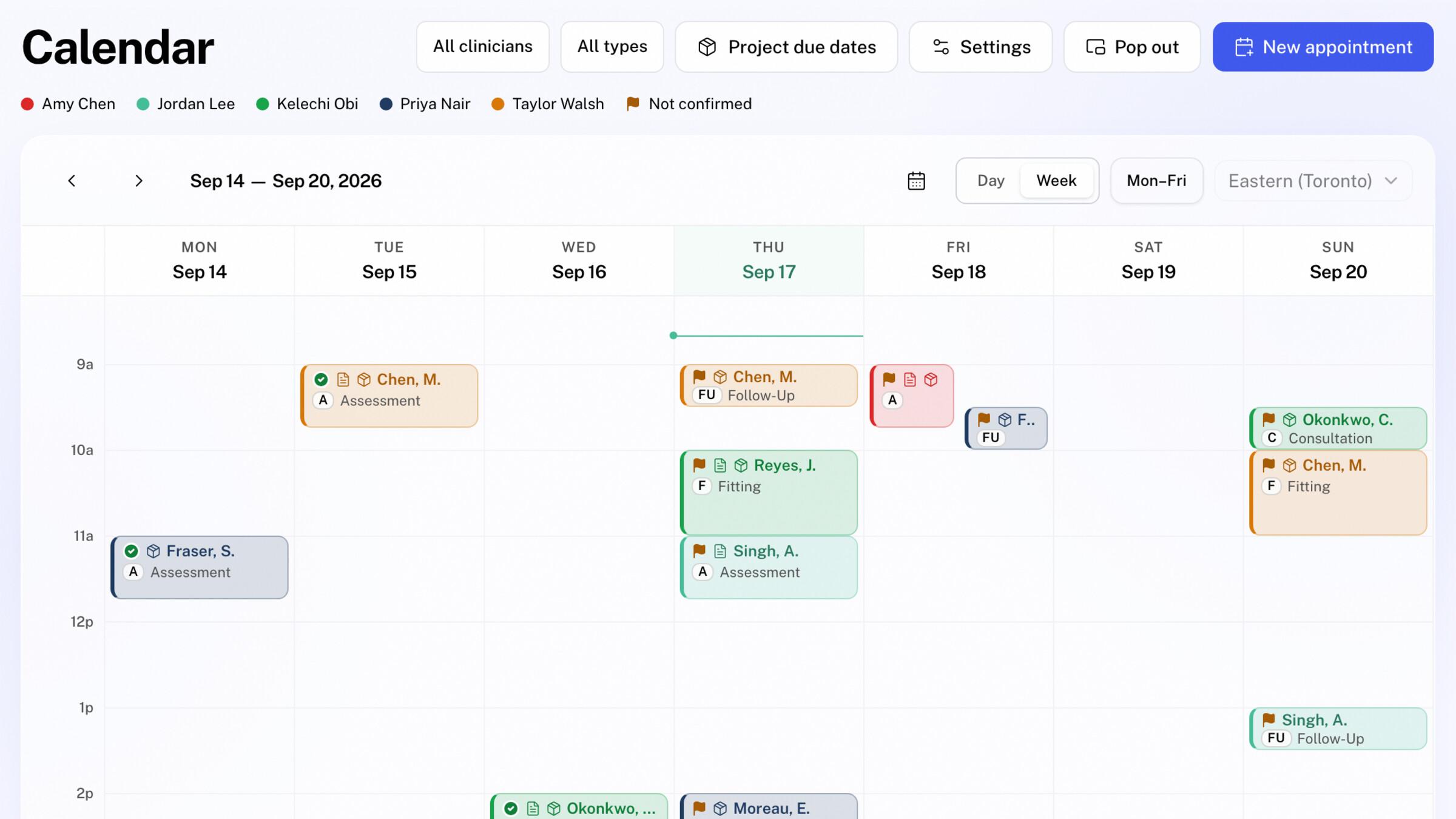
The front desk spends more of the day in the calendar than anywhere else in Medfair. It is where a phone call becomes a booking, where a clinician checks who is next, and where someone has to notice that the 2:30 never confirmed.
This month's calendar updates make that screen do more of the work. Every booking now carries its clinician's colour. Patients can confirm their visit from the emails they already receive, and the calendar flags the visits nobody has confirmed yet. The calendar can pop out into a window of its own for a second screen, and any appointment opens a patient sheet you can read and print.
Several of these changes started as requests from the clinics we work with. Thank you for telling us where the calendar slowed you down; it shapes what we build next.
The calendar is the appointment book in Medfair's clinic management software. The same patient record holds the workshop's fabrication work and the funding claim, so a booking is never far from the rest of the patient's care.
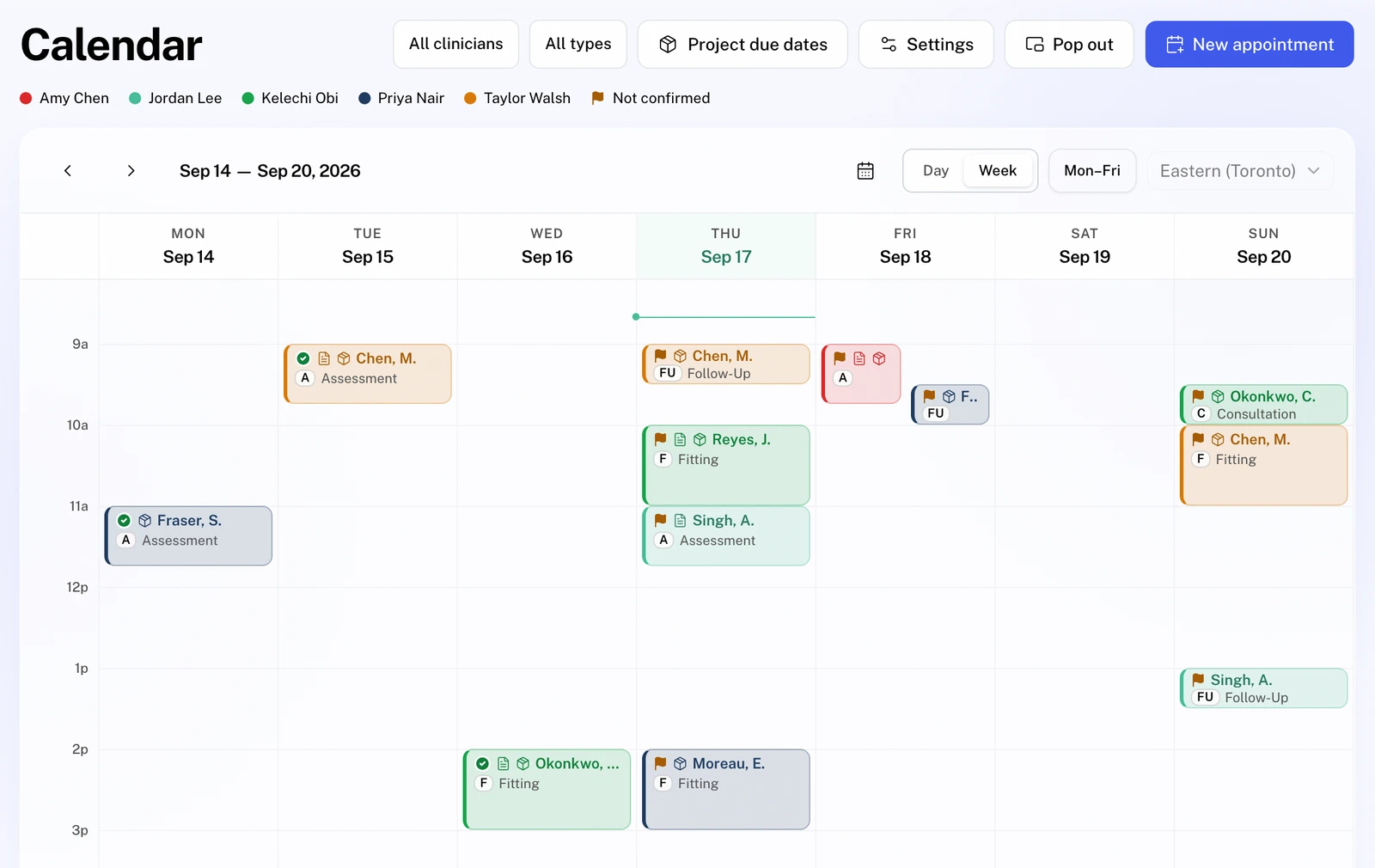
What's new at a glance
- Colour by clinician: every clinician has a colour, and each appointment type gets a short tag, such as C for Consultation.
- The week first: the calendar opens on the week, and Mon–Fri hides the weekend without hiding anything booked there.
- Patient confirmations: a Confirm my appointment button in booking, reminder and rescheduled emails, and Mark confirmed for staff.
- A flag for the unconfirmed: upcoming visits that nobody has confirmed carry a ⚑.
- The actions you use most sit at the top of the appointment window.
- The patient sheet: view and print a patient's key details from the appointment.
- A pop-out window: keep the calendar on its own screen while Medfair does everything else.
- On your phone: the Android app shows the same colours, tags, flag and confirmations.
See whose day is whose
The calendar used to colour appointments by type, so finding one clinician's afternoon meant reading names.
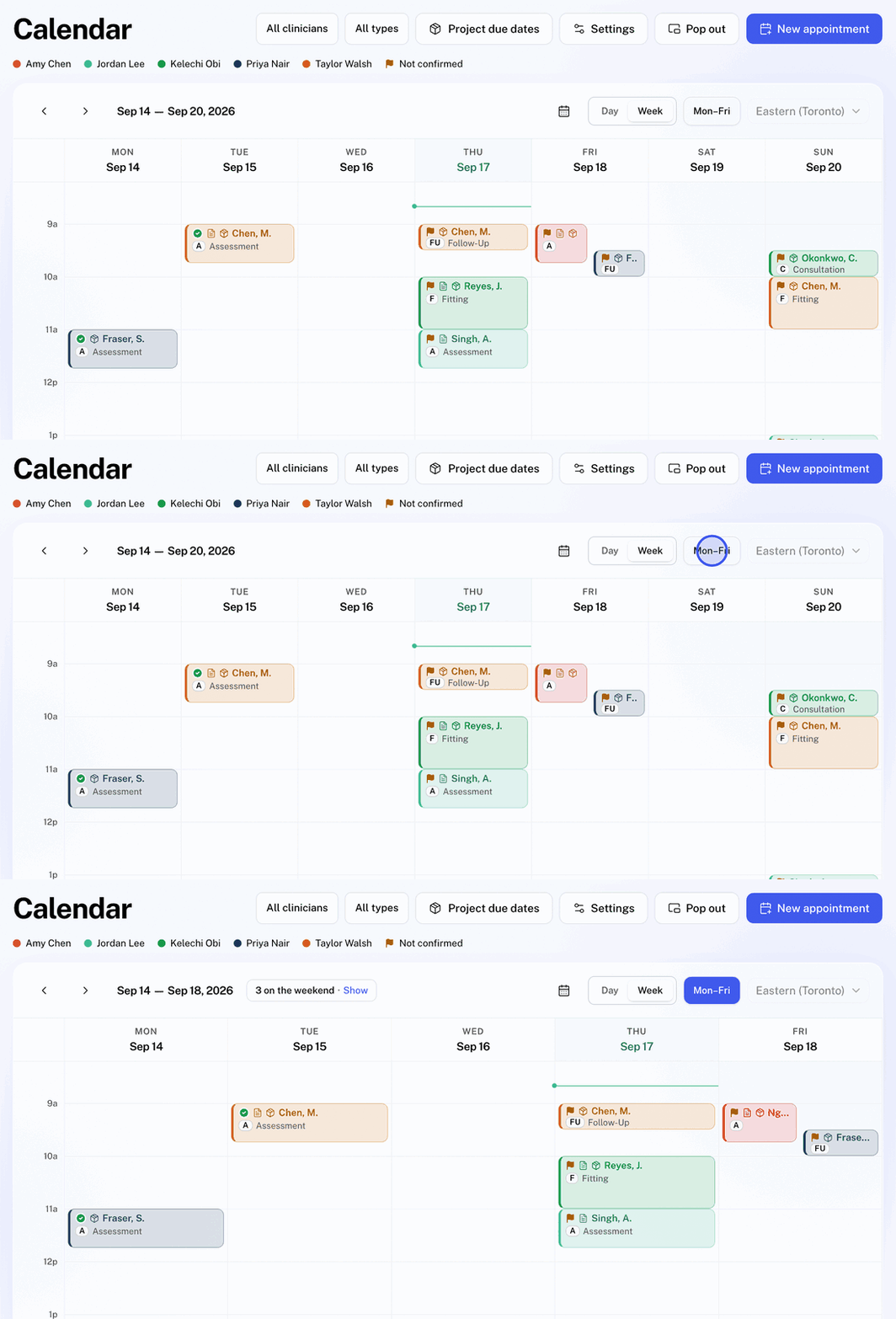
Each clinician now has their own colour, so a glance at the week shows whose day is whose. A key under the Calendar heading names each clinician on screen. Colour is never the only cue: each booking's label and the appointment window name the clinician too.
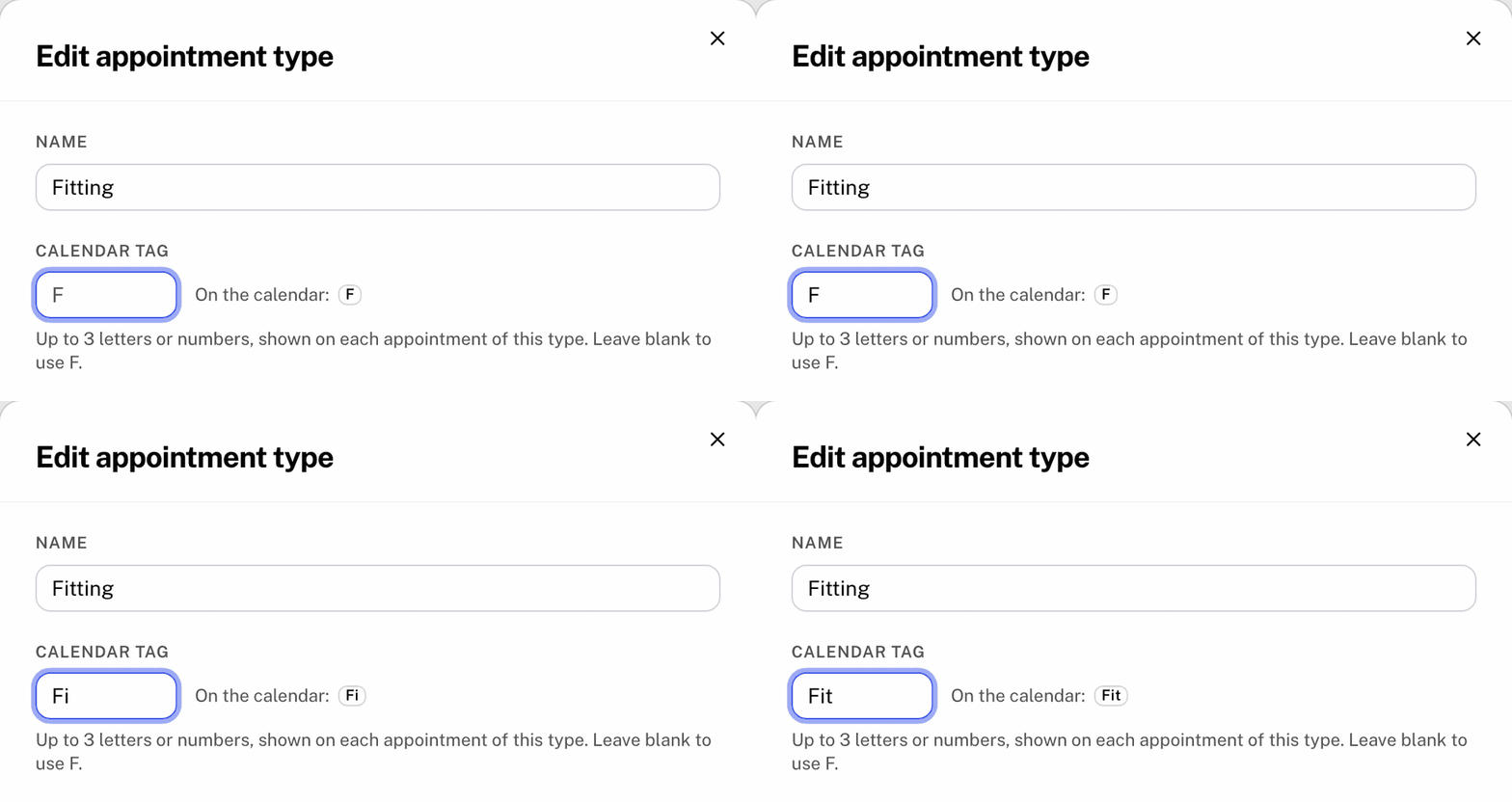
The appointment type becomes a tag of up to three letters or numbers at the start of the booking: C for Consultation, FU for Follow-Up, or whatever your clinic prefers. Leave the tag blank and Medfair uses the type's initials. When a booking has room, the type's full name sits beside the tag. In a narrow column the name shows whole or not at all, so nobody has to read "Consulta…".
Setting them up takes a minute:
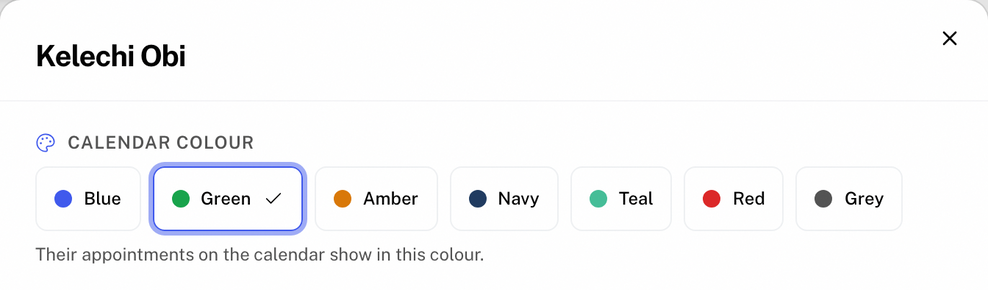
- Colours: in Calendar settings › Availability, open a clinician and pick one of seven colours. Every clinician starts with one. Clinicians can change their own, and anyone who can edit Clinic settings can change anyone's. If two people share a colour, the picker says so.
- Tags: in Calendar settings › Appointment types, type up to three characters in Calendar tag and check the preview.
The week comes first, and the weekend can wait
The calendar now opens on the week, with the day one click away. On a phone it still shows one day at a time.
If your clinic works Monday to Friday, turn on Mon–Fri to give the five working days the full width. Medfair remembers the choice on that computer. Nothing booked on a weekend disappears quietly: when Saturday or Sunday holds an appointment, a closure or a project due date, the header says so ("3 on the weekend · Show"), and one click brings the weekend back. On a phone, Mon–Fri makes the day arrows skip from Friday to Monday.
Know who's coming before the day starts
An appointment nobody has confirmed is one that might not happen. The calendar now records confirmations and shows you the ones still outstanding.
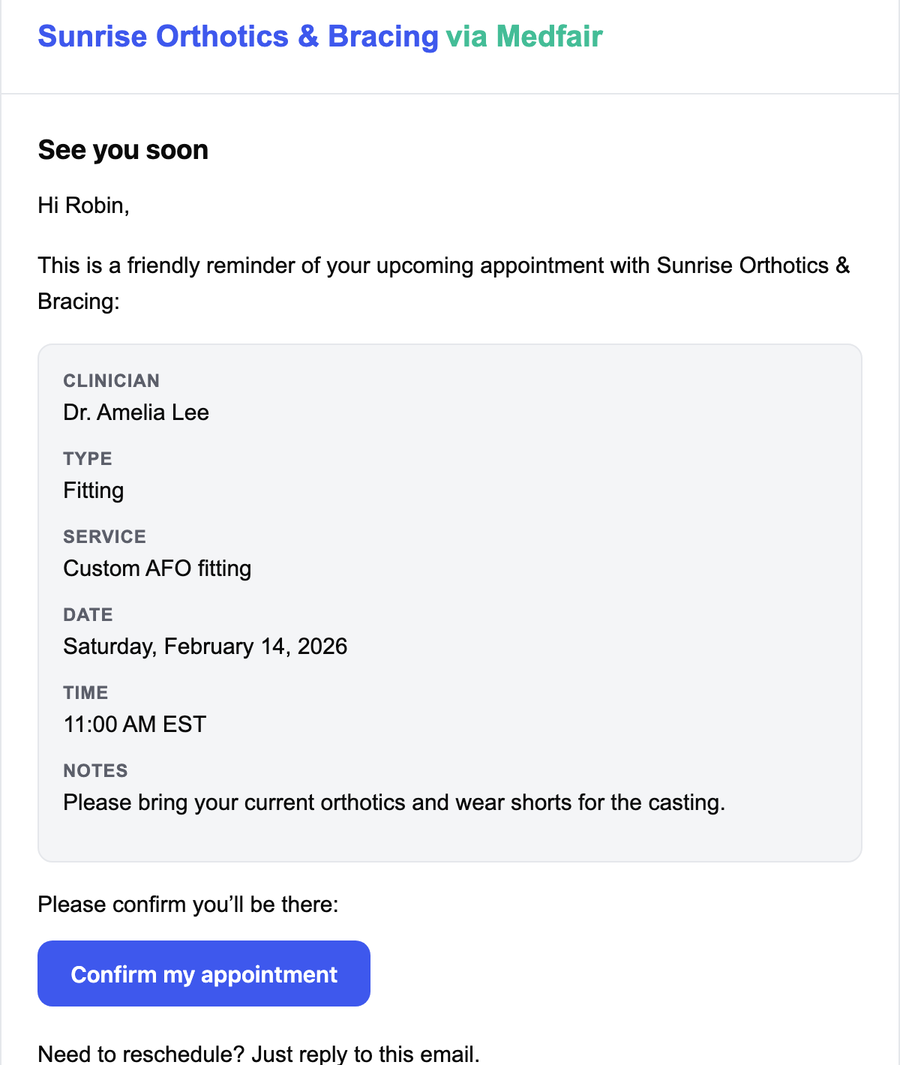
Patients confirm from their email. Booking, reminder and rescheduled emails now carry a Confirm my appointment button. Until now, the reminder asked patients to reply to confirm, and those replies landed in an inbox the calendar couldn't see.
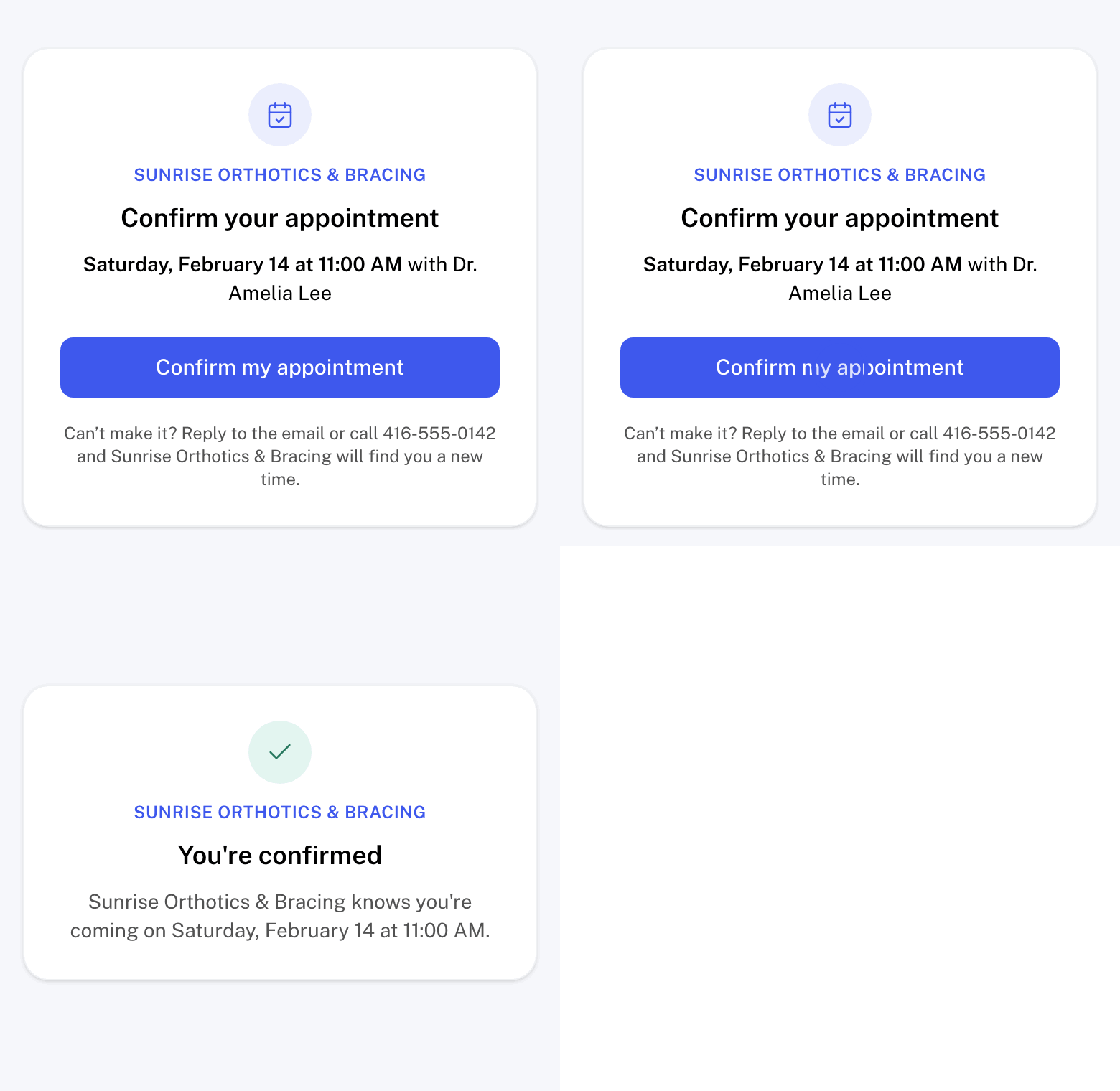
The button opens a short page with the clinic, the date and time, and the clinician, and one more button to confirm. Opening the page changes nothing; only the button does, so an email security scanner that follows links can't confirm on a patient's behalf. The page never shows the patient's name.
Staff confirm from the appointment. When a patient confirms by phone or at the desk, Mark confirmed records it. The appointment then shows who confirmed and when: "Confirmed by patient" or "Confirmed by staff", with the date.
The calendar shows what's outstanding. An upcoming visit that hasn't been confirmed carries a ⚑ on its booking, and the key reads "Not confirmed" whenever one is on screen. The flag clears when the visit is confirmed or cancelled, or once it starts.
A new time needs a new yes. Move an appointment to a different time and its confirmation clears, because the patient agreed to the old time. The rescheduled email asks them to confirm the new one, and a link from an older email can't confirm it. Changing the clinician or the notes without changing the time keeps the confirmation.
The actions you use most, at the top
The appointment window now puts its actions in the header, so they are there without scrolling past the form: Mark confirmed, Send reminder, Mark no-show and Cancel appointment.
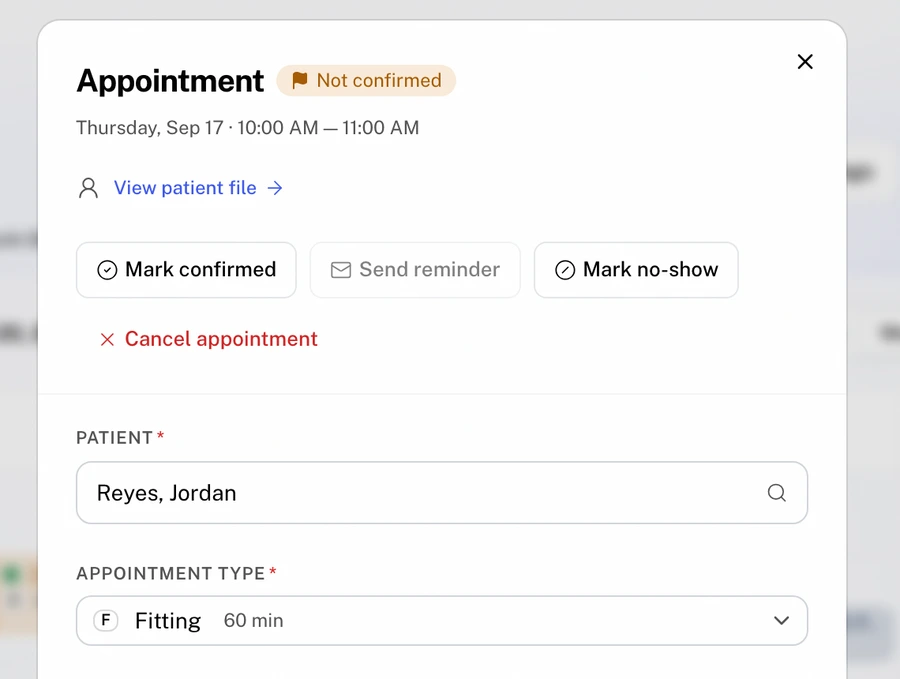
Mark complete is gone. A visit that happened simply stays as booked, and visits marked complete before this update keep their ✓ on the calendar.
The patient's details, without leaving the appointment
Many clinics print a contact sheet for the paper file so the clinician knows who they are seeing. That sheet now lives in the appointment.
Choose View patient file in the appointment window for a read-only summary of the patient: anything to check before treating, this appointment beside the latest prescription, contact details and health card, contacts, Health team, coverage, and the three most recent notes. Back to appointment returns you to the booking with any unsaved changes where you left them, and Open full file goes to the complete patient file.
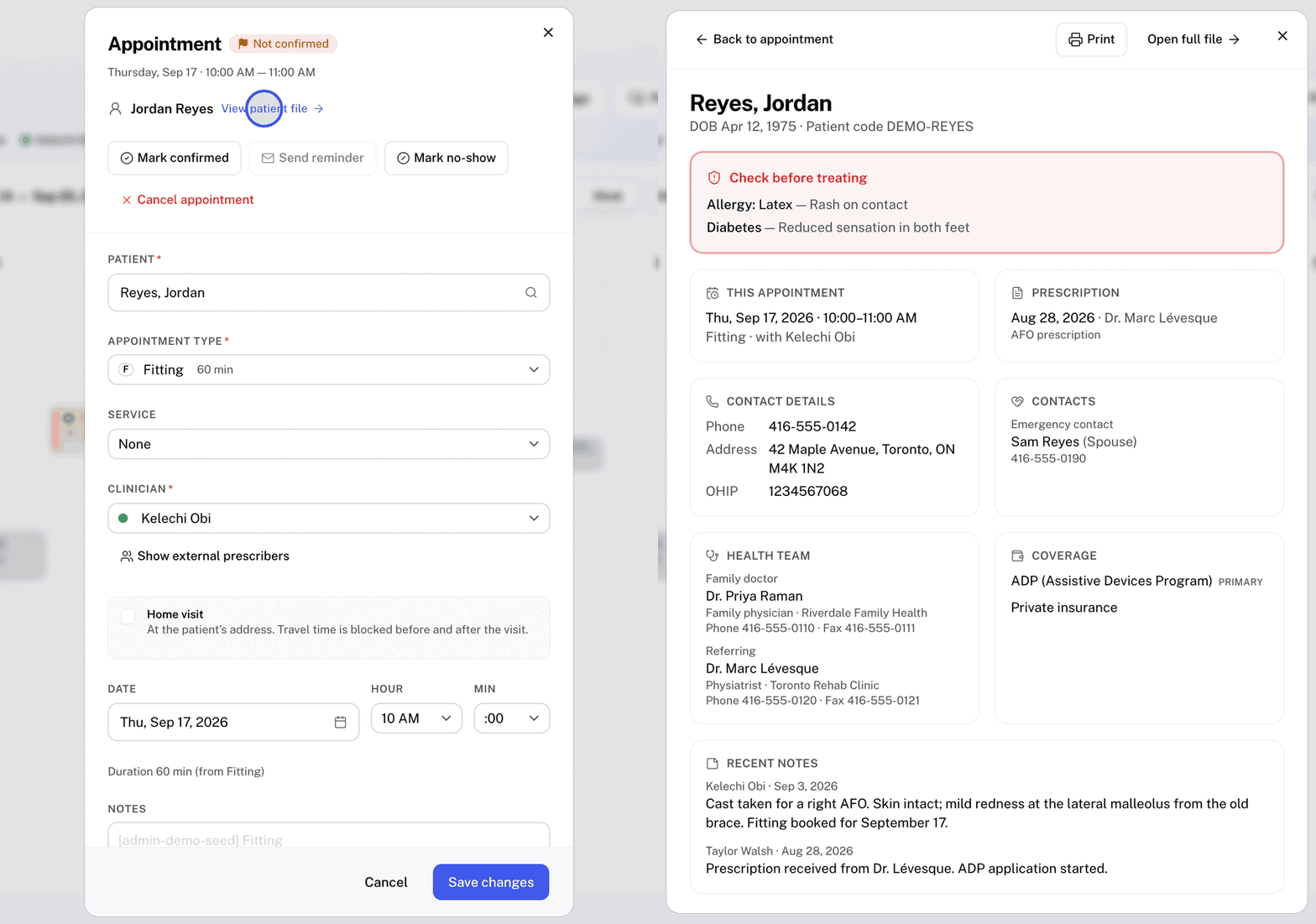
Print turns the summary into a sheet for the paper file, one page for most patients, with lines for handwritten notes and a footer naming who printed it and when. Anyone who can view patient files can open it, and each view is recorded in the patient file's access log.
Pop the calendar out into its own window
Pop out, in the calendar's header, opens the calendar in a window of its own: full width, with no side bar. Keep it on a second screen at the front desk while your main Medfair window handles patient files, claims and invoices.
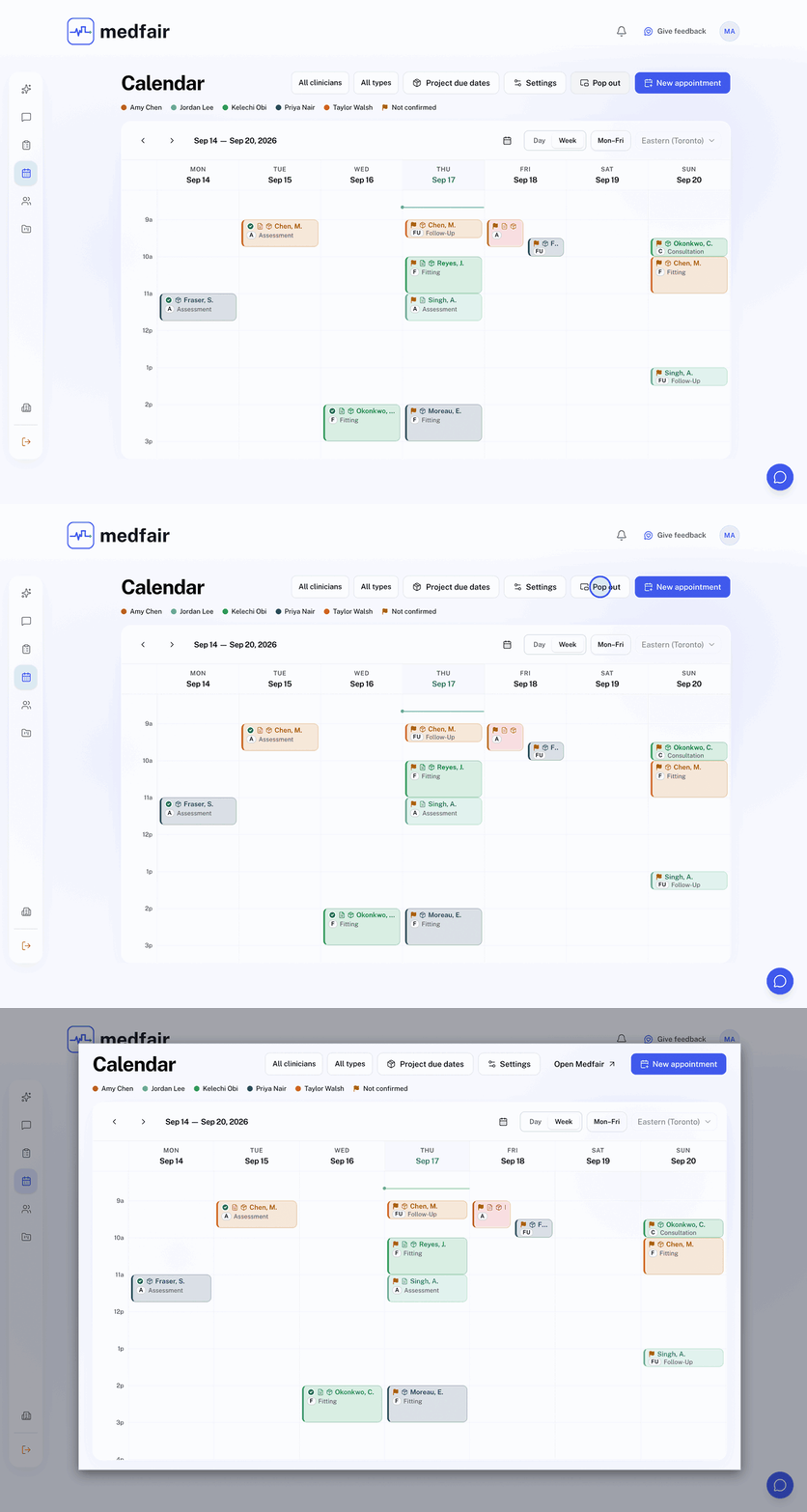
Booking, filters and Calendar settings all work inside the pop-out. A patient file, claim or project opened from it opens in your main window, so the calendar stays put, and Open Medfair brings the main window forward. A booking, change or cancellation made in one window shows up in the other. Signing out of Medfair in any window now signs out the others too. Pop out is for computers; on a phone the calendar works as before.
On your phone
Medfair's Android app follows along. Version 1.2 colours the calendar by clinician and shows each type's tag before the patient's name. Version 1.3 adds Mark confirmed, the ⚑ with "Not confirmed" on upcoming visits, and who confirmed each visit. The app offers the update, or you can download it from medfair.ca/mobile.
Also new this month
- Up to three lengths per appointment type. A Fitting can run 30, 45 or 60 minutes, and staff pick the length when they book. Set the lengths in Calendar settings › Appointment types; online booking uses the first one.
- Calendar subscriptions in Google Calendar or Outlook show each visit as its type and the patient's last name in capitals, such as "Fitting · SMITH", when your clinic includes patient names in the feed, and as the type alone when it doesn't.
Put the updates to work
- Pick colours and tags in Calendar settings, so the week reads at a glance for everyone.
- Check tomorrow's flags before you close, and call the patients who haven't confirmed.
- Try Pop out on the front desk's second screen.
Scheduling is part of Medfair Pro and Health System; see pricing for what each plan includes.
Using the new calendar already? Tell us where it gets in your way with the Give feedback button in Medfair.
Frequently asked questions about the Medfair calendar
How do patients confirm an appointment in Medfair?
Booking, reminder and rescheduled emails include a Confirm my appointment button. It opens a page showing the clinic, the date and time, and the clinician, with a button to confirm. Pressing it marks the visit "Confirmed by patient" on the clinic's calendar. Medfair sends confirmations by email, not text message.
Can front desk staff confirm an appointment for a patient?
Yes. Mark confirmed in the appointment window records a confirmation taken by phone or in person, and the appointment shows "Confirmed by staff" with the date.
What happens to a confirmation when an appointment is moved?
Moving an appointment to a new time clears its confirmation, and the rescheduled email asks the patient to confirm the new time. A confirmation link from an earlier email can't confirm the new time. Changing the clinician or notes without changing the time keeps the confirmation.
How does Medfair colour-code the calendar?
By clinician. Each clinician has one of seven colours, set in Calendar settings › Availability, and a key under the Calendar heading names them. Appointment types show as tags of up to three letters or numbers, such as C for Consultation.
Can I hide weekends in the Medfair calendar?
Yes. Mon–Fri in the week view hides Saturday and Sunday, and Medfair remembers it on that computer. If anything is booked or due on the weekend, the header shows how many, with a button to show the weekend again.
Can I keep the Medfair calendar open on a second screen?
Yes. Pop out opens the calendar in its own window. A booking made in either window appears in the other, and patient files, claims and projects open in the main window. Pop out works on computers, not phones.
Can I print a patient's details from an appointment?
Yes. View patient file in the appointment window shows a read-only summary of the patient, and Print turns it into a sheet for the paper file, one page for most patients. Each view is recorded in the patient file's access log.